Quick answer: To combine PDF files on Windows, open RebelPDF Studio, choose Merge, add your files, drag the pages into the right order, and save one new PDF. It takes about a minute and keeps everything in one app.
A client asks for “the whole packet.” You have a cover letter, a quote, a signed form and two attachments, all as separate PDFs. Sending five files feels sloppy, and someone always opens them in the wrong order.
Combining them into one PDF fixes that.
How to combine PDF files in 3 steps
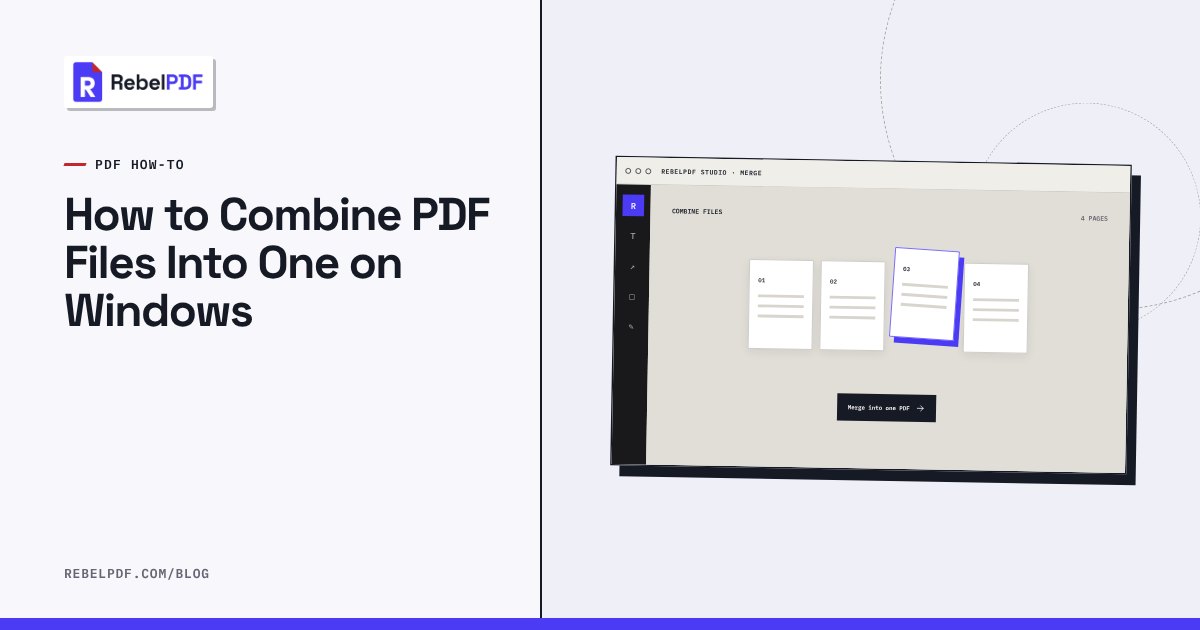
- Open RebelPDF Studio and choose Merge.
- Add your files and set the order. Drag pages or whole files up and down until they read in the right order. Rotate any sideways pages.
- Save one clean PDF. Give it a clear name, like Acme-Proposal-Packet.pdf.
See the steps with pictures: how to merge PDF files on Windows.
Tips for a professional packet
- Lead with a cover page that lists what is inside.
- Remove blank or duplicate pages before you save.
- Check the file size. If it is too big to email, compress it.
Need the opposite?
Sometimes you need to pull a few pages out of a big PDF instead. That is called splitting. Here is how to split a PDF on Windows.
Why use one app?
Free merge websites ask you to upload your files to someone else’s server, and many add limits or watermarks. With RebelPDF Studio you merge, split, compress, edit and sign in the same Windows app your team already uses.
Frequently asked questions
Yes. In RebelPDF Studio you can drag pages and files into any order before you save.
Merging is part of RebelPDF Studio. Reader is for viewing, marking up, filling forms and printing.