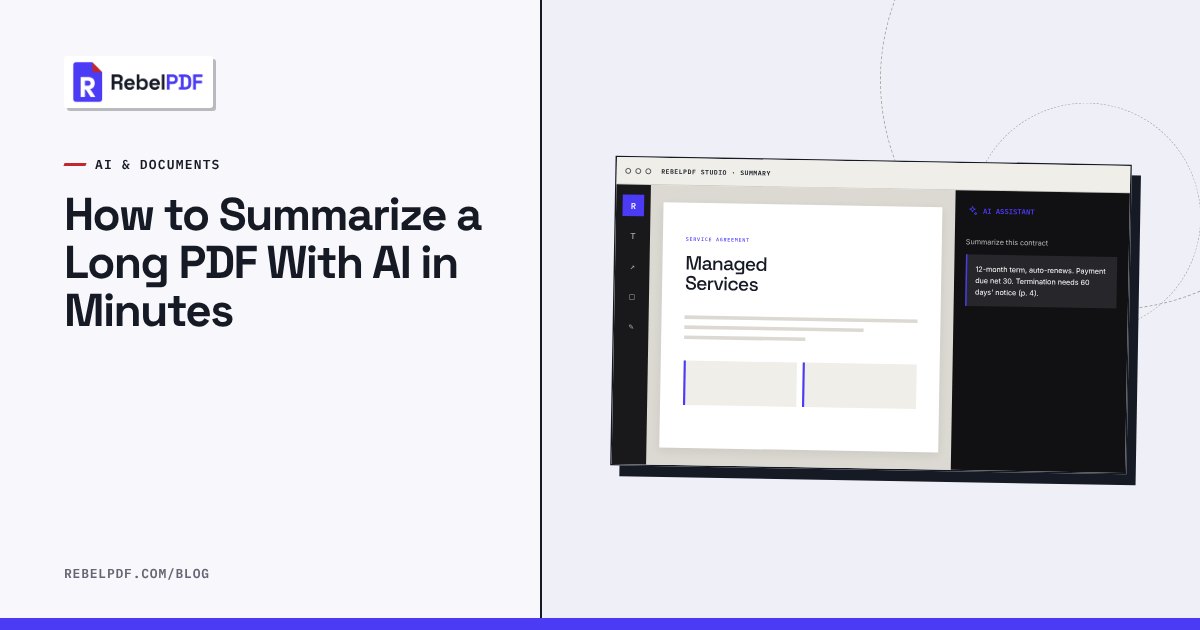
Quick answer: Open the PDF in RebelPDF Studio, open the AI assistant, and ask for a summary. You can follow up with questions like “What are the key dates?” and get answers with page references. Always check important details against the page the AI points to.
Long PDFs pile up: contracts, reports, policies, proposals. Reading every page takes hours you do not have. Skimming means you might miss the one line that matters.
An AI assistant can do the first read for you, so you can focus on what matters.
How to summarize a PDF with AI in 3 steps
- Open the PDF in RebelPDF Studio and open the AI assistant beside the document.
- Ask for a summary. Try: “Summarize this in five bullet points.”
- Ask follow-up questions. Get answers with page references, then check those pages.
Great questions to ask
- “What are the key dates and deadlines?”
- “How long is the contract, and how does it renew?”
- “What happens if we cancel early?”
- “List every dollar amount in a table.”
- “What changed between this version and the last one?” (see how to compare two PDFs)
- “Draft a short reply that asks about section 4.”
Use the AI you already trust
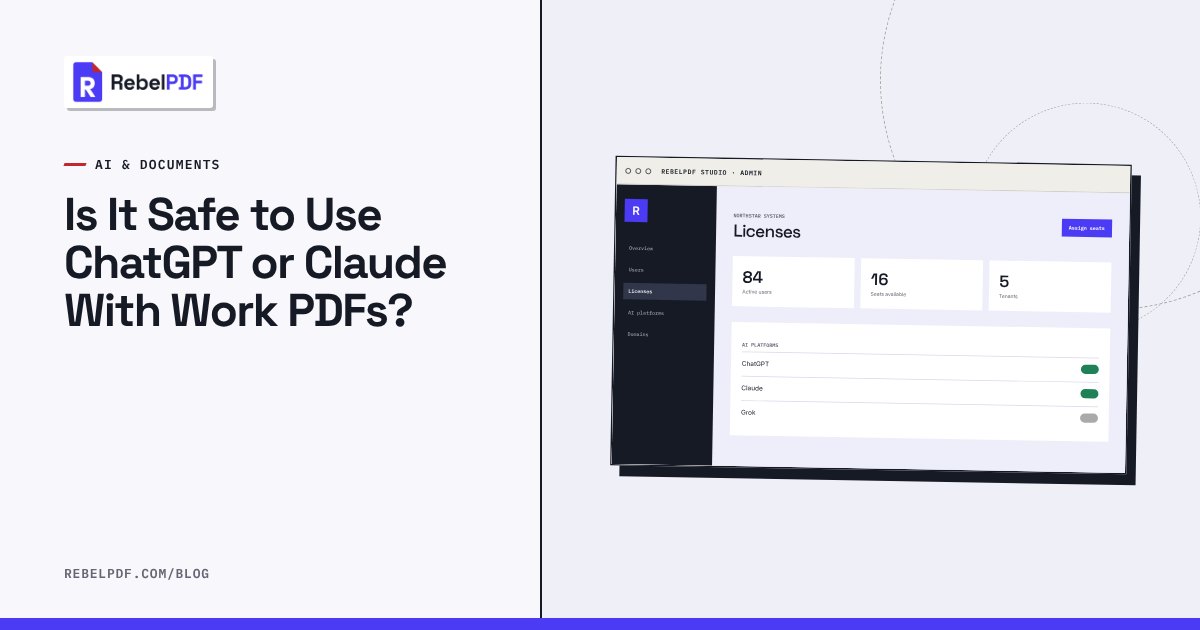
The RebelPDF AI PDF assistant works with ChatGPT, Claude, Grok and more. Your admin picks which ones are allowed. A document is only sent to the AI when you ask a question.
Trust, but verify
AI is fast, but it can make mistakes. Treat its answer like a helpful coworker’s first draft. For money, legal or medical decisions, read the actual page before you act.
What you get back
Instead of spending an afternoon reading, you spend ten minutes understanding the document and checking the parts that matter. That is time back for real work.
Frequently asked questions
Yes. The RebelPDF AI assistant can summarize long documents, answer questions with page references and pull out tables, dates and figures.
Yes. The AI PDF assistant is included in Studio Business and Enterprise.
Use it as a fast first read. Check important details, like money and dates, on the page the AI points to.