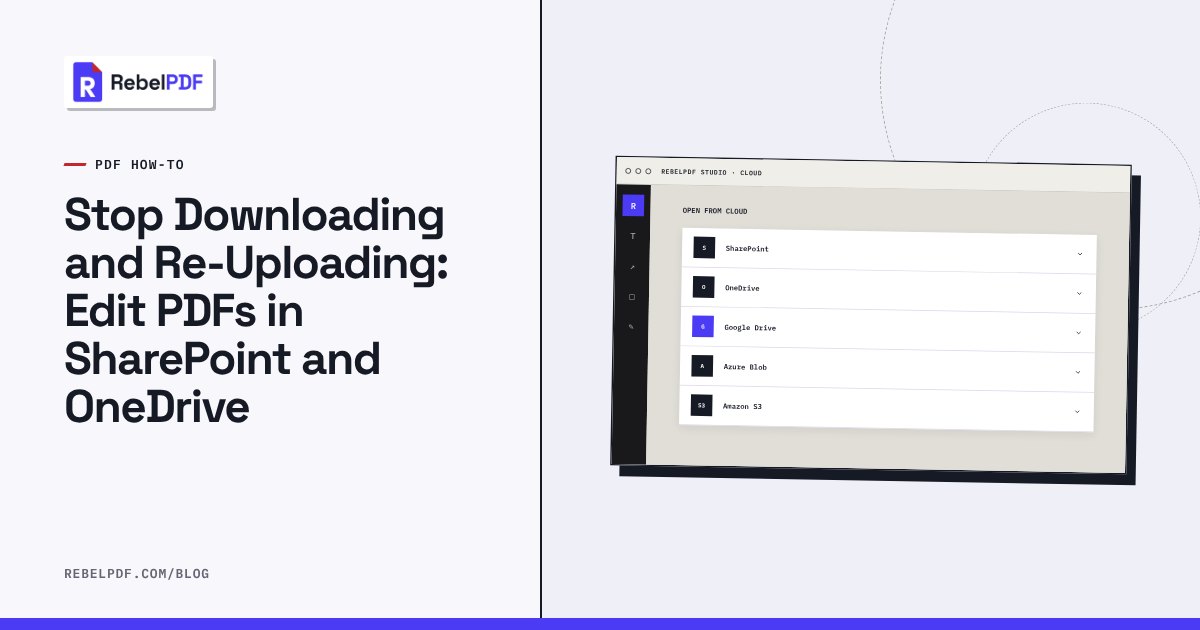
Quick answer: Use a PDF editor that connects to your cloud storage. RebelPDF Studio opens PDFs straight from SharePoint, OneDrive, Google Drive, Azure Blob Storage and Amazon S3, lets you edit them, and saves them back to the same place. You sign in once per service, and RebelPDF remembers the connection.
You need to fix one line in a PDF that lives in SharePoint. So you download it. Edit it. Save it as “final-v2.” Upload it. Realize someone else edited the old one. Now there are three versions and nobody knows which is right.
That download-edit-upload loop wastes time and creates mess.
A better way: work where the file lives
When your PDF editor connects to your cloud storage, you skip the loop:
- Connect your storage. Sign in to SharePoint, OneDrive, Google Drive, Azure Blob or Amazon S3 once.
- Open and edit. Open the PDF in RebelPDF Studio and make your changes.
- Save it back. The file goes right back to the same folder. One file, one version.
Learn more about cloud storage in RebelPDF.
Why it matters
- No duplicate files sitting in Downloads folders.
- Less confusion about which version is current.
- Files stay where your team already keeps them, with your normal sharing rules.
Which services work?
| Service | Works with RebelPDF Studio |
|---|---|
| Microsoft SharePoint | Yes |
| Microsoft OneDrive | Yes |
| Google Drive | Yes |
| Azure Blob Storage | Yes |
| Amazon S3 | Yes |
Bonus tip
Need to send a huge PDF? If it already lives in SharePoint or OneDrive, share a link instead of an attachment.
Frequently asked questions
Yes. RebelPDF Studio opens PDFs from SharePoint, lets you edit them and saves them back to the same place.
No. Sign in once per service and RebelPDF remembers the connection.
Cloud storage connections are part of RebelPDF Studio.