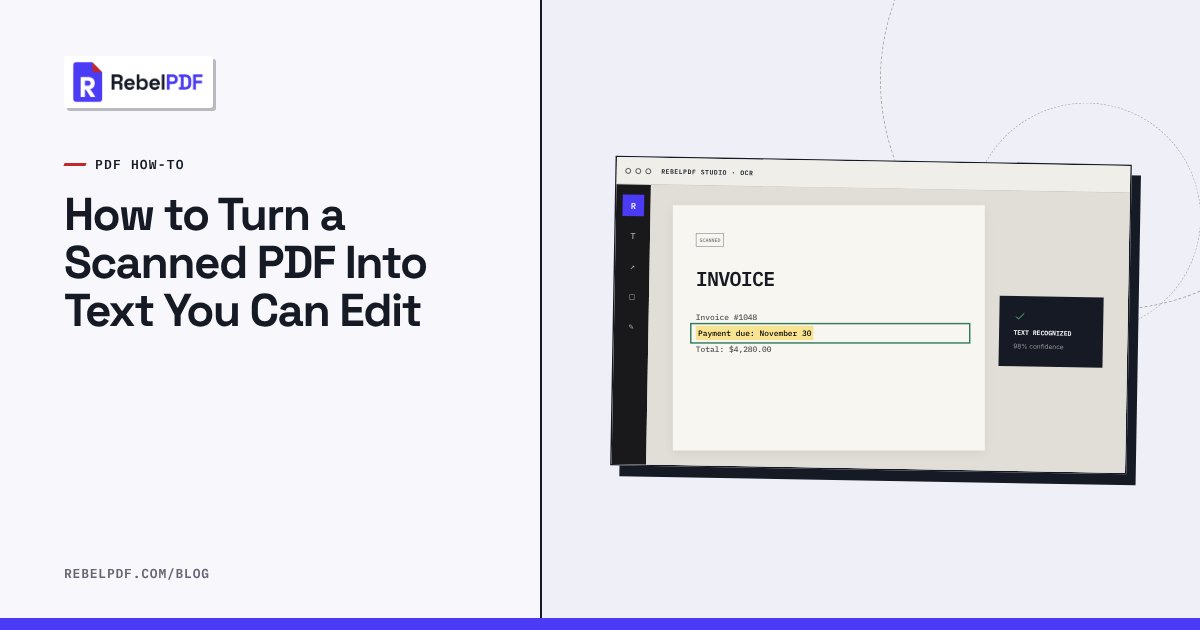
Quick answer: Use OCR, which stands for optical character recognition. OCR reads the picture of the words in a scanned PDF and turns them into real text. In RebelPDF Studio, open the scan, run OCR, and the text becomes searchable, selectable and editable.
You scan a signed contract or an old invoice. Later you need one number from it. You press Ctrl+F to search… and nothing happens. You try to copy a sentence… and you just get a box.
That is because a scan is a picture of text, not text. The fix is OCR.
What is OCR?
OCR looks at the shapes of the letters in an image and figures out what they say. After OCR, your PDF looks the same, but now the computer can read it too. That means you can:
- Search for any word
- Copy and paste text
- Edit the words
- Convert the file to Word or Excel
How to OCR a scanned PDF in 3 steps
- Open the scan in RebelPDF Studio.
- Run OCR. Studio recognizes the text on each page.
- Search, copy or edit. Save the file so the text stays searchable.
Our tool page shows each step: how to OCR a PDF on Windows.
Tips for better OCR results
- Scan straight. Crooked pages are harder to read.
- Use good light and contrast. Dark text on a white page works best.
- Scan at a decent resolution. 300 DPI is a good rule of thumb.
- Double-check numbers. Always review totals and dates after OCR.
Why this matters
Teams lose hours retyping scanned documents by hand, and accounting firms feel it most at tax season. OCR turns that into a few clicks. It also makes old files findable, so the answer you need is a search away instead of buried in a folder.
Frequently asked questions
A scanned PDF is an image of text. Run OCR to turn it into real, searchable text.
Yes. After OCR, you can edit the recognized text in RebelPDF Studio.