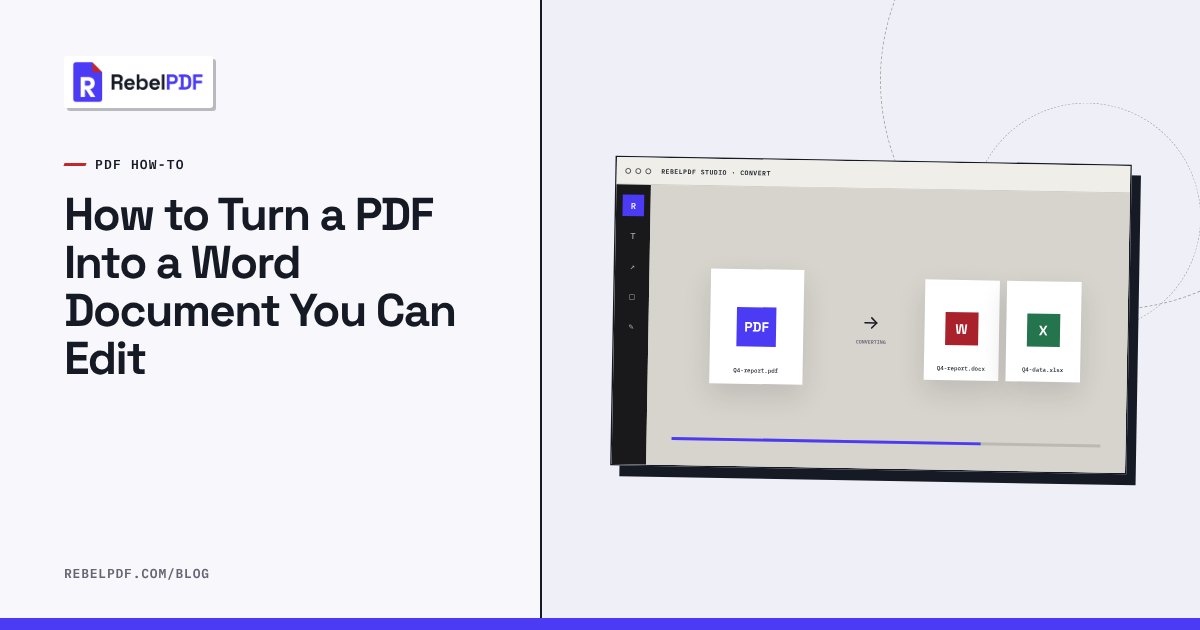
Quick answer: Open the PDF in RebelPDF Studio, choose Convert, pick Word, and save. Studio keeps fonts, tables and layout as close as possible. If the PDF is a scan, run OCR first so there is real text to convert.
You need to update last year’s proposal, but nobody can find the original Word file. All you have is the PDF. Retyping ten pages is not an option.
Converting the PDF to Word gets you an editable document in a minute.
How to convert a PDF to Word in 3 steps
- Open the PDF in RebelPDF Studio.
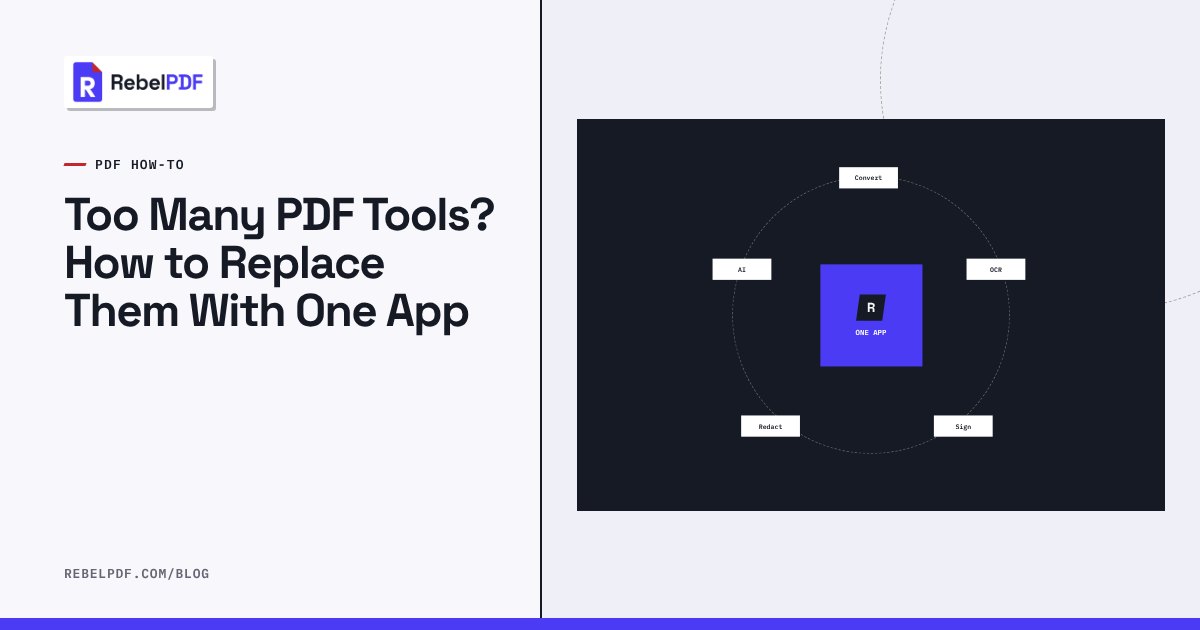
- Choose Convert, then Word. You can also pick Excel, PowerPoint or images.
- Save and open the Word file. Check headings, tables and page breaks.
Here is the full guide: how to convert a PDF to Word on Windows.
Tips for a clean conversion
- Scans need OCR first. A scan is a picture. OCR turns it into text.
- Simple layouts convert best. Very fancy designs may need a little cleanup.
- Check tables and numbers. Always review totals after converting. Need a spreadsheet instead? See how to convert a PDF to Excel.
Convert or edit?
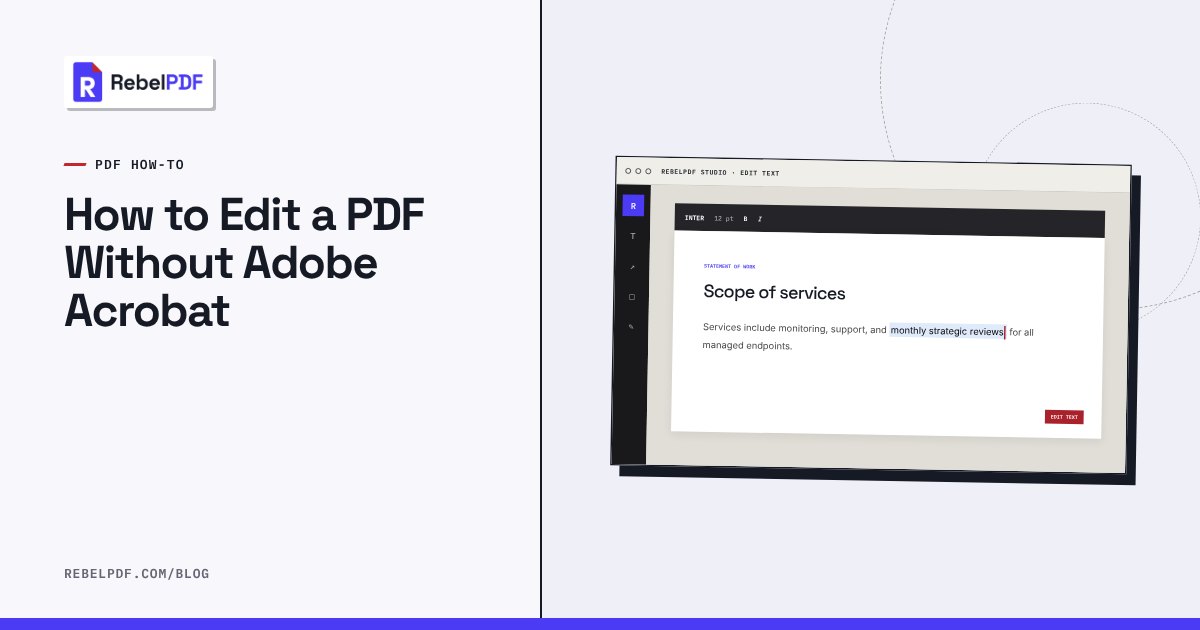
If you only need to change a few words, you may not need to convert at all. RebelPDF Studio lets you edit text right in the PDF. Convert when you need to rewrite a lot or reuse the content in another document.
Going the other way
RebelPDF Studio can also turn Word, Excel and PowerPoint files back into PDFs, so you can finish your edits and share a clean PDF again.
Frequently asked questions
Yes. RebelPDF Studio converts PDFs to Word, Excel, PowerPoint and images, and back to PDF.
RebelPDF keeps fonts, tables and layout as close as possible. Complex designs may need small fixes.