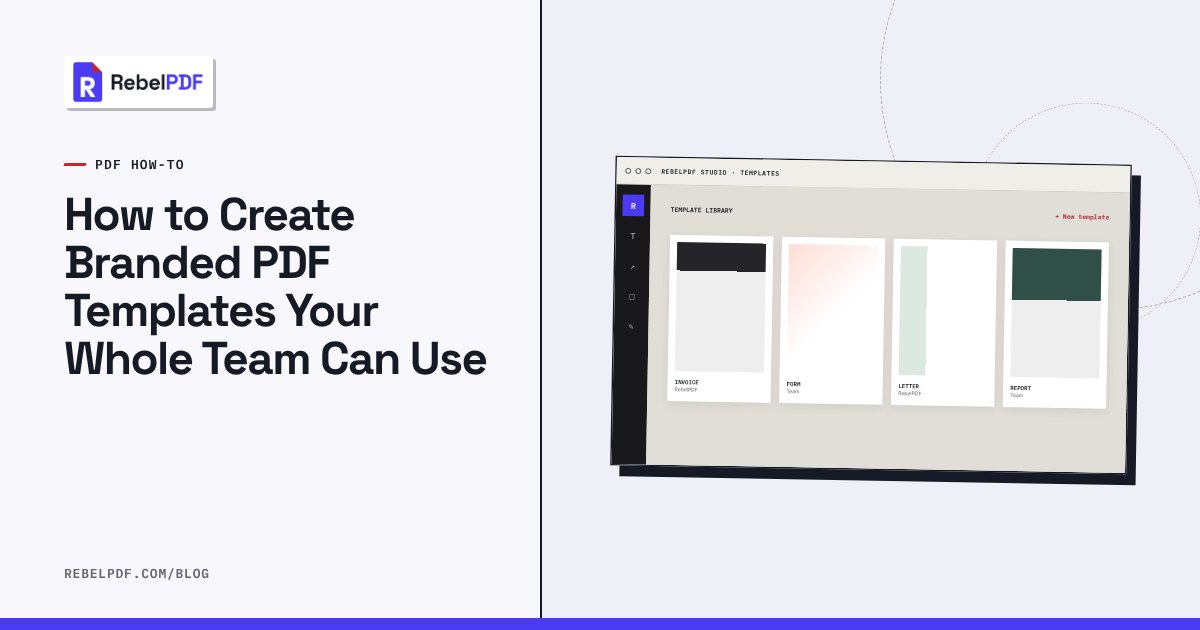
Quick answer: In RebelPDF Studio, start from a ready-made template or save one of your own PDFs as a template, add your brand fonts, and share it with your team. You can also add fillable fields like text boxes, checkboxes, dropdowns and signature fields.
Look at five invoices your team sent last month. Chances are they use different fonts, different logos and different layouts. One has an old phone number. It does not look like one company.
Templates fix that by giving everyone the same starting point.
Why PDF templates help
- Consistent brand on every invoice, quote, letter and report
- Faster work, because nobody starts from a blank page
- Fewer mistakes, since the details are already filled in
How to set up team templates in 3 steps
- Choose a template. Start from RebelPDF’s template library for invoices, quotes, letters, forms and reports, or save one of your own PDFs as a template.
- Add your fonts. Import Google Fonts and the brand fonts your company is licensed to use.
- Build fillable forms and share. Add text fields, checkboxes, dropdowns and signature fields, then share the template across your organization.
See all the options on our templates and fonts page.
Templates worth making first
| Template | Why |
|---|---|
| Invoice | Looks professional and gets paid faster |
| Quote or proposal | Same pricing layout every time |
| Letterhead | Official letters always match |
| Intake or request form | Fillable fields collect clean info |
A tip on fonts
Only use fonts your company has the right to use. Google Fonts are free, and your brand team can tell you which licensed fonts are approved.
Frequently asked questions
Yes. In RebelPDF Studio, templates can be shared across your organization.
Google Fonts and any font your organization is licensed to use.